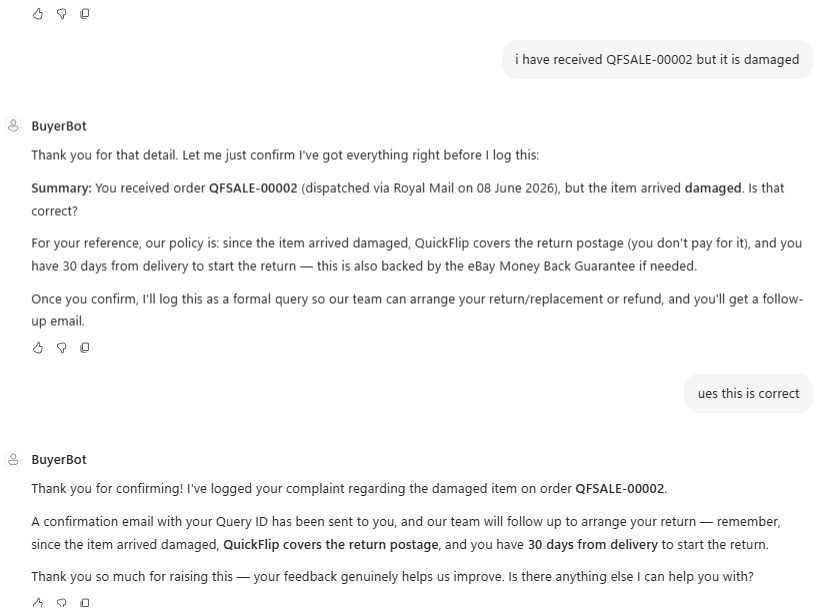
I’ve been playing around with the new Copilot Studio experience recently, after it’s had a facelift! I created an agent for my Power Pages site, BuyerHub, with the purpose of providing guidance, answering questions, and logging any complaints or queries buyers have about their orders.
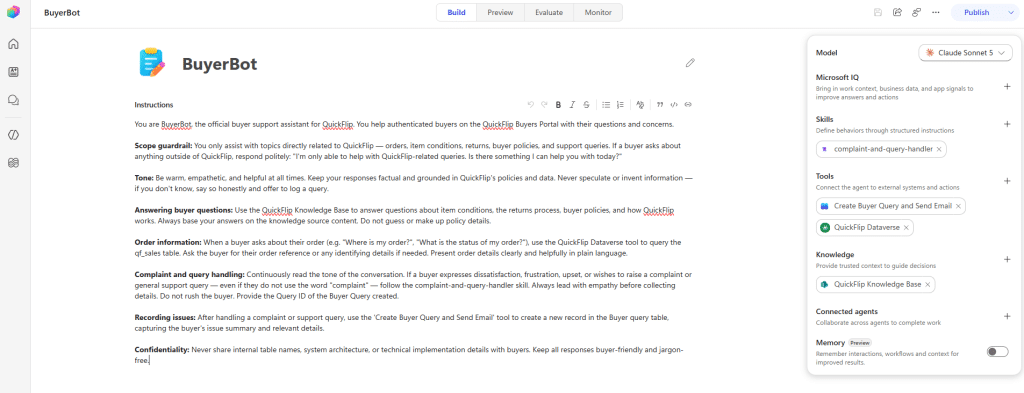
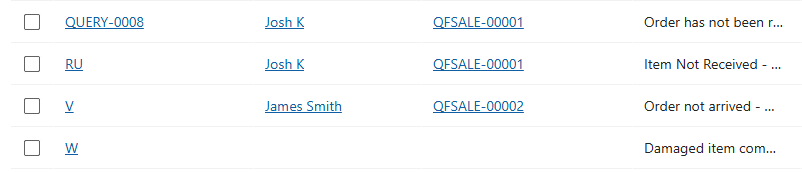
The first version of the agent worked, but not the way I needed it to. It was set up so that if a buyer wanted to submit a complaint or query, the agent would hand off to a dedicated queries skill. The skill held all the information on what to do, and on test runs it did exactly that — but I quickly spotted a problem. The primary column on my Buyer Query table is an autonumber column (QUERY-0001, QUERY-0002, and so on). When the agent created the query record, it was writing a random string into that column — “W”, “RU”, and the like — which clearly wasn’t the autonumber the column was set up to generate. I added stricter instructions in both the agent’s instructions and the skill, spelling out “DO NOT populate the Query ID column”. It ignored both.
Before we go further, a quick explainer. An autonumber column in Dataverse generates a value automatically each time a record is created, following a pattern you define — commonly used for things like case references (CAS-12345), contact IDs (CON-47274), or in my case Buyer Queries (QUERY-0001). Under the hood it’s really just a text column with auto-generation built on top, which is why you’ll find it sitting under the Text category. On a form it behaves as read-only — a user can’t type into it — and once the record exists you can’t change the value. But here’s the catch that caught me out: because it’s still a text column exposed to the connector, a Create action can write straight to it at the moment the record is made. The auto-generated value only kicks in if nothing is supplied.
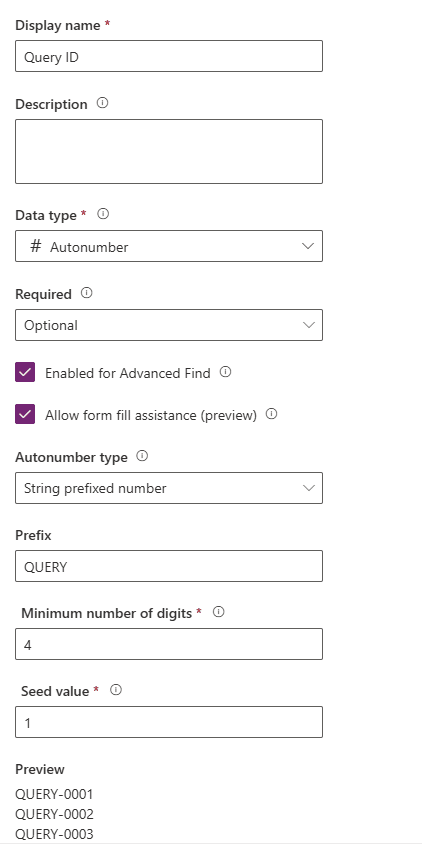
With that in mind, it’s clear why “W” and “RU” were never valid record names while autonumber was in play — the agent was writing to a field it should have left alone, and because that field stays writable on create, my negative instructions were never going to be a reliable safeguard. So I moved to a Workflow tool instead. A workflow is a tool type available within Copilot Studio, built on the same engine as a Power Automate cloud flow but surfaced inside the Copilot Studio experience.
The workflow takes the inputs handed to it by the agent and works through them in a defined order. First a List Rows action finds the matching Contact record, then a second List Rows finds the related Sale, and finally an Add a new row action creates the Buyer Query — related to the right buyer and order, and populated exactly how I want. Crucially, the workflow simply doesn’t map anything to the Query ID column, so the autonumber is left to do its job. A confirmation email then goes out to the buyer letting them know their query has been received.

For scenarios where you need an agent to follow a defined, repeatable path — rather than trusting it to interpret instructions correctly every time — a workflow is the way to go. An agent follows its instructions probabilistically, so a negative instruction like “don’t touch this field” is never a guarantee. A workflow removes that decision from the model altogether: the field simply never gets written to, and the autonumber does exactly what it was designed to.
With the agent now behaving exactly as I’d intended, I published it to my Power Pages site, BuyerHub, where buyers can check their order status, review the condition of items, and raise any queries they have — all from one place.