
A Power Automate flow description tells you what the flow is for. It does not tell you why the third action runs after every status, or why a lookup is bound by code instead of by GUID. Those answers usually live in the head of whoever built it, which is a poor place to keep them. Power Automate notes give those answers a proper home.
Notes are a small feature that closes that gap. Each action and trigger in a cloud flow can carry a short note explaining what it does and why it is there. I have started using them on every action in a flow I am building, and this post covers how they work and what I put in them.
How to add Power Automate notes to an action
In the new designer, select an action, select the vertical ellipsis, then select Add a note. In the classic designer, select the ellipsis on the action or trigger, select Add a note, type in the Note box and press Enter to save it. Once a note exists, a note icon appears on the card, and in the new designer you hover over the icon to read it.
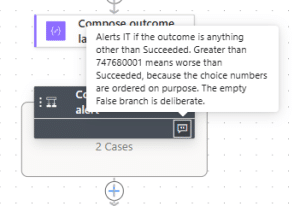
This is not hidden away. Microsoft describes notes in its coding guidelines as being like comments in code, and its naming conventions guidance recommends adding notes to actions so the flow logic is easier to follow. It is still an easy feature to overlook, which is why I wanted to write about it.
One limit worth knowing. Microsoft Learn does not state a length limit for notes. In my testing, a note is capped at 256 characters in both the new and classic designers. Plan for that, because it shapes what a note can hold.
Three levels of documentation for a flow
I now think of a flow as having three layers, each answering a different question.
- Flow description: what the flow does as a whole, what it aims to achieve and its purpose.
- Action notes: what each individual action does, and why.
- Technical documentation: the depth. Exactly what the flow does, any prerequisites, what happens if it goes wrong, where to look if data needs to be reconfigured, and what monitoring is in place.
The flow description is the one Copilot can help with. The cloud flows designer has a Copilot that can answer “What does my flow do?” and suggest a description when you edit the flow’s details. Notes sit underneath that, at the level of a single action, and the technical documentation sits behind both.
What goes in a good note
A note should say what the action does and, where it is not obvious, why. The action name already tells a reader what kind of action it is. The note is for what they cannot see on the card. These three are from a flow I am currently building:
Creates varHeld, false. Set to true when the feed fails validation or the removal guard trips. While true, nothing is written to the calendar and the run ends Held for review.
That one explains a variable, when it changes, and what the consequence is.
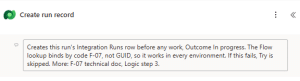
Creates this run’s Integration Runs row before any work, Outcome In progress. The Flow lookup binds by code F-01, not GUID, so it works in every environment. If this fails, Try is skipped. More: F-01 technical doc, Logic step 3.
This one carries a decision (bind by code, not GUID), the reason for it, and what happens on failure. The final sentence is the useful habit. When 256 characters is not enough, the note points to a named section of the technical documentation, so the reader knows exactly where to go next.
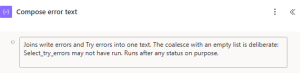
Joins write errors and Try errors into one text. The coalesce with an empty list is deliberate: Select_try_errors may not have run. Runs after any status on purpose.
The last two sentences matter most. A coalesce with an empty list, and an action that runs after any status, can both look like mistakes to someone tidying the flow later. The note says they are deliberate and says why.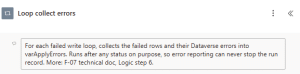
Who writes the notes
You can write the notes yourself, or have AI write them as part of the build. I cover how I work with Claude Code, including the documentation it produces as we go, in Using Claude Code to Build Power Platform, and to Teach It. Either way, read each note against the action it describes. A note that is confidently wrong is worse than no note.
If you comment your Power Fx in the same spirit, my post on commenting Power Fx code covers the canvas app side of the same habit.
What I have not tested
I have not yet tested how notes behave when a solution is exported and imported, so I cannot say whether they travel with the flow between environments. If you have tried it, I would like to hear what you found.

