The new AB-410 exam — Building Intelligent Applications — replaces PL-200, and AI Builder features heavily throughout the materials. That’s no surprise given the exam’s name.
As part of my exam prep, I’ve been building a solution for an eBay reseller (a made-up scenario for the purpose of the build). One part of that solution uses AI Builder receipt processing: the user uploads a receipt for a purchased item, the AI model reads the lines, pulls out the total, and writes it back into Dataverse without the user having to type anything. This maps directly to two skills on the exam — Consume an AI model in apps and Consume an AI model in cloud flows.
Following Microsoft Learn’s receipt processing module
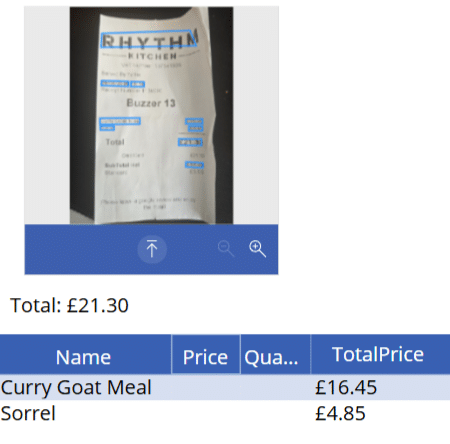
Although it isn’t part of my specific solution, I followed along with the “Create an app by using receipt processing” unit of Microsoft Learn’s Process receipts with AI Builder module to build a basic Canvas App. It let me upload a receipt and display the total amount, every line item, and the AI confidence score. I won’t repeat the steps here — the module walks through them clearly and is well worth trying yourself. Here’s mine:

Building the AI Builder receipt processing flow
For my solution, I wanted the user to upload a receipt and have the AI read the total and write it into the Dataverse record. I’m using Dataverse here, but OneDrive or SharePoint would work just as well.
I started the flow with a When a row is added, modified or deleted trigger, with the table set to my Inventory Item table. I’ve intentionally left the column filter blank. Filtering on a file column is a known weak spot in Dataverse: file contents are written through a separate upload pipeline to the normal row save, so a column-filtered trigger may not fire reliably when the file is uploaded (depending on your scope).
With that in mind, and so AI Builder has something to work with, I added a Download a file or an image action pointing at my Receipt column.
Next comes the Process receipts AI Builder action. This is a prebuilt model, so there’s nothing to train or configure — it’s genuinely plug and play. One thing worth flagging: prebuilt models still consume AI Builder credits, so your environment needs AI Builder capacity available for the action to run. The receipt file it works on is the output from the Download a file or an image action.
Getting the total into a currency field
Depending on your setup, the AI Builder output may not be ready to drop straight into Dataverse. My total goes into a Currency column, and the raw output — “£21.40”, for example — would fail the flow, because £ isn’t a valid character in that field.
To handle this, I added a Compose action using a Power Automate expression (this is the flow expression language, not Power Fx). It removes the £ symbol, then removes any commas, then converts what’s left into a number — giving 21.40:
float(replace(replace(outputs('Process_receipts')?['body/responsev2/predictionOutput/result/fields/total/value'], '£', ''), ',', ''))
One tip: rather than copying my expression verbatim, select the Total value from the action’s dynamic content when you build yours. The output schema for Process receipts has changed across versions, so the exact path can differ between environments — and a mismatched path is the quickest route to a “property cannot be found” error.
Showing the confidence score to the user
The Process receipts action also returns a confidence score for each field it extracts, and it’s worth surfacing. You can create a dedicated Dataverse column and have the flow populate it with the confidence value, so the end user can see how confident the model was in its reading.
Confidence matters because AI extraction isn’t infallible — a crumpled receipt or an unusual layout can throw it off. Exposing the score gives the user a signal: a high score can be trusted at a glance, while a low one flags the record for a quick manual check before it’s relied on. It’s a small addition, but it keeps a human in the loop where it counts.
Preventing a trigger loop
Writing back to the same record the flow is watching can cause the flow to trigger itself in a loop. To stop that, I use trigger conditions — expressions the trigger evaluates before it runs, so the flow only fires when it genuinely should. I covered this pattern in more detail under trigger loop (Solution 2).
In my solution I have two, both specific to this build. The first checks that the Purchase Amount field is empty — so once the flow has written the total, it won’t fire again on the same record. The second checks that a Manual Purchase Amount flag is set to No — so if the user chooses to enter the amount themselves, the AI flow steps aside rather than overwriting them. Yours will differ, but the principle holds: use trigger conditions to control exactly when the flow should act.
Finally, the output of the Compose action goes into an Update a row action, writing the value into the relevant field.
The result
Now when I upload a receipt to my Dataverse record, the flow triggers, AI Builder reads the receipt, and the item’s value is written into the field automatically.


Further resources
If you’d like a video walkthrough of the flow side, I found Mary Myers’ “Using AI Builder in Power Automate for Expense Management“ a useful resource that covers the same prebuilt model in action.