If you are someone like me who utilises their M365 E5 Developer Tenant to learn, work on personal projects and so on, you may have been concerned, and rightly so, that Microsoft is discontinuing and eventually deleting unmanaged developer environments.
What is changing for unmanaged developer environments
The change comes from Microsoft’s deprecation notice for unmanaged developer environments and the Power Apps Developer Plan. It covers every unmanaged developer environment, including the one the Developer Plan creates when you sign up. Developer environments that are already managed environments are not affected.
| Date | What happens |
|---|---|
| 15 November 2026 | Signing up for the Power Apps Developer Plan no longer creates a developer environment, and new unmanaged developer environments cannot be created. |
| 15 December 2026 | Existing unmanaged developer environments are suspended. Their apps, flows, agents, Power Pages developer sites and data are not available. |
| 15 January 2027 | Suspended unmanaged developer environments are deleted. |
Doing nothing is not an option
These dates are fixed, and they apply whether or not you are using the environment. If you do nothing, your unmanaged developer environment is suspended from 15 December 2026 and deleted from 15 January 2027.
That leaves two choices. You can convert the environment to a managed environment, or you can export your solutions and import them into a sandbox or production environment instead. Microsoft recommends the first, and I agree. A converted environment keeps its apps, flows, agents and data and stays a developer environment, whereas moving everything by hand is considerably more effort. Whichever you choose, finish before 15 December rather than on it.
What I have done so far
I have now moved two of my own environments to managed environments and have not hit a problem so far. The rest of this article covers the difference between managed environments and managed solutions, what it means if you have more than one developer environment, how to migrate, and how to keep learning afterwards. One thing to say early: Microsoft’s documentation does not mention M365 E5 Developer Tenants at all, so parts of this are my experience rather than anything Microsoft has confirmed.
Managed environments are not managed solutions
This one caught me out at first, so it is worth separating the two terms.
A managed environment is an environment with Managed Environments switched on, which unlocks admin and governance capabilities such as sharing limits, usage insights, data policies and solution checker. A managed solution is a way of packaging components so they can be deployed into an environment that is not where you build them. Microsoft’s solution concepts describe unmanaged solutions as the ones used for development, and managed solutions as the ones deployed to test and production.
They are separate settings. You can have a managed environment and still work with unmanaged solutions, so development carries on exactly as it did before.
What this means if you have more than one developer environment
From 15 November, each user can create only one managed developer environment. Until then, the Developer Plan allows up to three. Developer environments that are already managed are left alone, even if a user already has more than one.
If you followed my guide to getting more than three developer environments by adding a second user, that approach will no longer work as I described it. Each extra user could create one managed developer environment, not three.
Microsoft’s documentation does not say whether converting several unmanaged environments after 15 November is treated the same as environments that were already managed. I would not assume it is, so if you have several environments worth keeping, convert them before that date.
If you administer your own tenant, the Developer environment assignments tenant setting is now what controls who can create managed developer environments. Control environment creation on Microsoft Learn has the detail.
How to migrate an environment
- Export your solutions first. Conversion keeps the environment’s contents, but I would still take a copy of your work before changing anything. Microsoft’s guide to exporting solutions covers it.
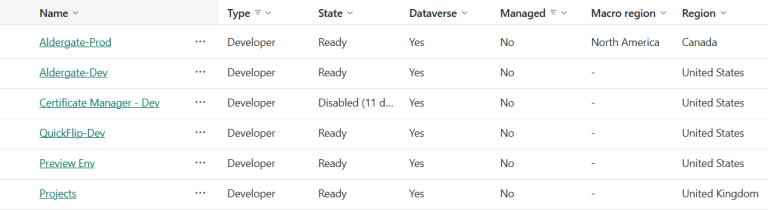
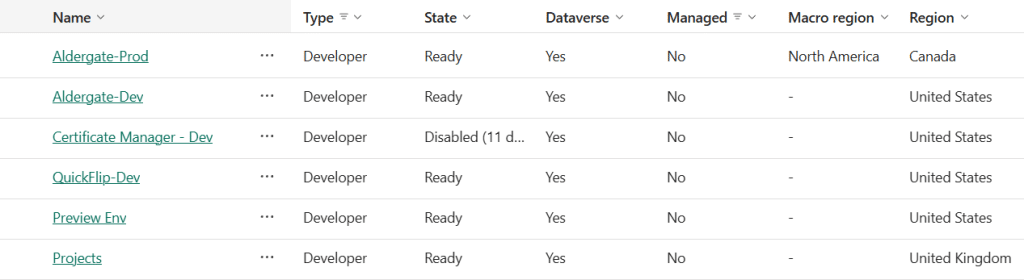
- Find your unmanaged developer environments. Sign in to the Power Platform admin center, go to Manage > Environments, and filter where Type is Developer and Managed is No. The Last activity column shows which ones you are still using.

- Check your role. Enabling Managed Environments needs the Power Platform Administrator or Dynamics 365 Administrator role in Microsoft Entra ID. I did mine from my main administrator account.
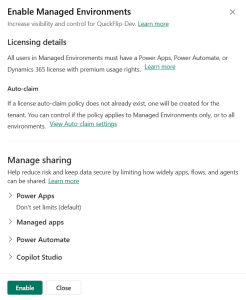
- Enable Managed Environments. Select the ellipsis next to the environment, then select Enable Managed Environments.
- Review the settings and select Enable. I left every setting at its default, and the environment was managed straight away.

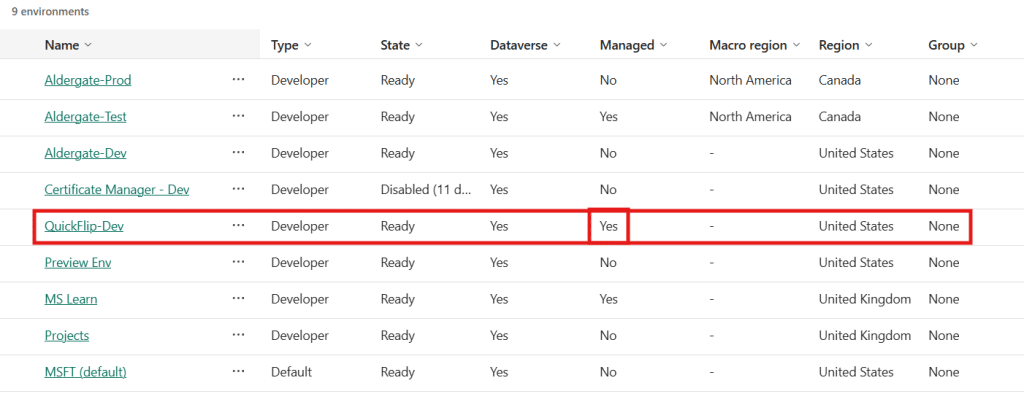
- Check the result. The Managed column should now show Yes. Then open an app and run a flow, which is what I did.
What I found after migrating
I migrated two environments in my M365 E5 Developer Tenant. One of them had been created by a second user in the tenant, and I converted it while signed in with my main administrator account. Afterwards I opened an app and ran a flow in the managed environments. There was no licensing banner and no prompt of any kind.
I also pulled the Power Apps licensing report for October. In the admin center, go to Licensing > Power Apps, select Download report on the Summary tab, and choose Users requiring licenses in Managed Environments as the usage type. It listed nobody.
Now the caveat, because it matters. Microsoft Learn is clear that the Developer Plan does not include Managed Environments use rights, and that users need a premium licence to run apps and flows in a managed developer environment, makers running their own included. It says nothing about M365 E5 Developer Tenants. Its Developer Program FAQ says the E5 developer subscription carries the same licensing as a regular E5 subscription, so I cannot tell you these tenants are exempt, and they may well not be.
My result may also have a simpler explanation. The account I tested with held trial licences, including a Copilot Studio trial and a Power Pages trial, and Learn says trial licences can license users in managed environments, with the usual time limits. I do not know whether that explains what I saw.
It is also worth knowing that, according to Learn, in-app licensing notifications began in June 2026, and from February 2027 users without an appropriate licence are blocked from opening apps in a managed environment. If I experience any of this, I will update this article.
Treat my experience as one data point. Results may vary.
Other options, and why I still prefer a developer environment
If you do not want to convert, Microsoft’s alternatives are a standard trial environment or exporting your solutions into a sandbox or production environment. Standard trial environments remain available, and they are fine for trying premium features.
For ongoing learning they are a poor fit. A standard trial environment lasts 30 days, with a single 30-day extension available in the last seven days. After that you would be creating a new trial, exporting, importing and repeating. In my view a managed developer environment is still the most practical place to learn over the long term.
One practical point: managed developer environments follow a 60 day inactivity rule, where unmanaged ones were disabled after 30. Real activity such as running a flow or updating an app resets the clock, but visiting the home page or opening the designer does not count. The automatic deletion page has the full schedule.
Learning with a managed developer environment
Once an environment is managed, more of the platform becomes available to practise with, including solution checker, pipelines in Power Platform and data policies. Microsoft lists the full set in the Managed Environments overview.