
I recently worked on a project to create a Canvas App that displays all tasks and projects at an organization in a gallery view. One seemingly simple requirement turned into an interesting learning experience: displaying who a record is assigned to.
The Challenge: Accessing the Owner Field
My first instinct was to use ThisItem.Owner in the gallery to display the record owner. However, I quickly discovered there’s no straightforward way to access the Owner field directly in a Canvas App gallery connected to Dataverse.
The Owner field is a polymorphic lookup (meaning it can reference either a User or a Team), and Canvas Apps don’t natively expand this relationship in gallery contexts without additional configuration.
The Initial Solution: Power Automate Flow
After consulting Copilot, I implemented the recommended approach:
- Created a new text column called “Assigned To” in my Dataverse table
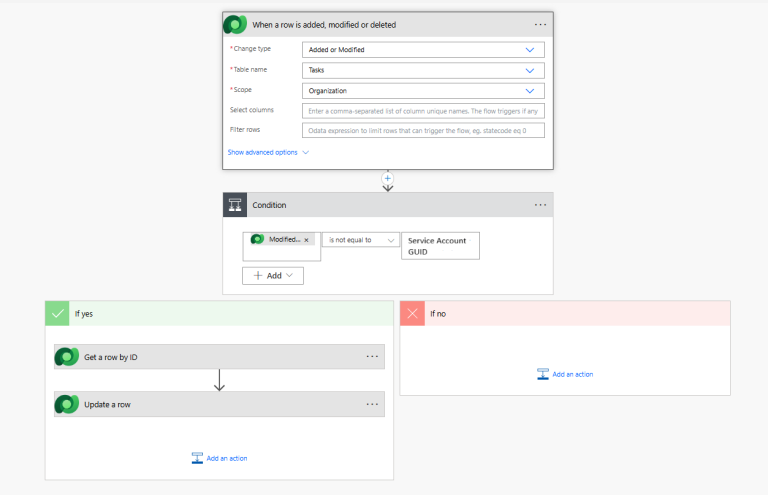
- Built a Power Automate flow with a “When a row is added, modified or deleted” trigger (change type: Added or Modified)
- Configured the flow to update the “Assigned To” field with the record owner’s name whenever the record changed
This worked initially, but I soon noticed a critical issue: the flow was stuck in a trigger loop.
The Problem: Infinite Trigger Loops
Because my flow’s trigger was set to “Added or Modified” and the flow itself modified the record (by updating “Assigned To”), it would continuously re-trigger itself — creating an endless loop of flow runs.
Solution 1: Using a Service Account with a Condition
To break the loop, I implemented the following approach:
- Created a dedicated service account to run the flow
- Added a Condition control at the start of the flow
- Configured it to check: “Modified By is not equal to [Service Account]”
- Yes path: Update the “Assigned To” field
- No path: Exit gracefully
This worked well and successfully prevented the infinite loop. However, there was a minor inefficiency: the flow would still run twice for each actual modification:
- Run 1: User modifies record → flow processes and updates “Assigned To”
- Run 2: Service account modifies record → flow starts, evaluates condition, then exits
While this wasn’t a major issue in my development environment, it could impact costs in enterprise scenarios where organizations pay per flow run.

Solution 2: Trigger Conditions (Community Feedback)
After sharing my approach on LinkedIn, several Power Platform professionals suggested a more efficient solution: using Trigger Conditions instead of in-flow conditions.
I implemented their recommendation by adding a Trigger Condition to my flow:
@not(equals(triggerOutputs()?['body/_modifiedby_value'], '[ServiceAccountGUID]'))The result? The flow now skips execution entirely when the service account is the modifier, rather than running and then exiting. This prevents the unnecessary second flow run from consuming resources.
How to Implement Trigger Conditions
Here’s how to set this up in your own flows:
- Open your Power Automate flow
- Click the three dots (…) on the trigger action
- Select Settings
- Scroll to Trigger Conditions
- Click Add and enter:text
-
@not(equals(triggerOutputs()?['body/_modifiedby_value'], 'YOUR-SERVICE-ACCOUNT-GUID')) - Replace
YOUR-SERVICE-ACCOUNT-GUIDwith your actual service account’s GUID
To find your service account GUID:
- Navigate to Power Platform Admin Center → Environments → Your Environment
- Go to Settings → Users + permissions → Application users
- Locate your service account and copy the User GUID
Key Takeaways
- Polymorphic lookups like Owner aren’t directly accessible in Canvas App galleries
- Power Automate can sync owner information to a text field, but watch out for trigger loops
- Service accounts combined with trigger conditions provide the cleanest solution
- Community feedback matters — sharing your solutions can lead to even better approaches
- In enterprise environments, optimizing flow runs can translate to real cost savings
What’s Next?
This experience reminded me of the value of continuous learning and community engagement in the Power Platform space. If you’re facing similar challenges or have alternative approaches, I’d love to hear from you!
Need help implementing Power Platform solutions? Contact Platform Pulse Solutions